

Connect GitHub
-
Go to the Integrations page.
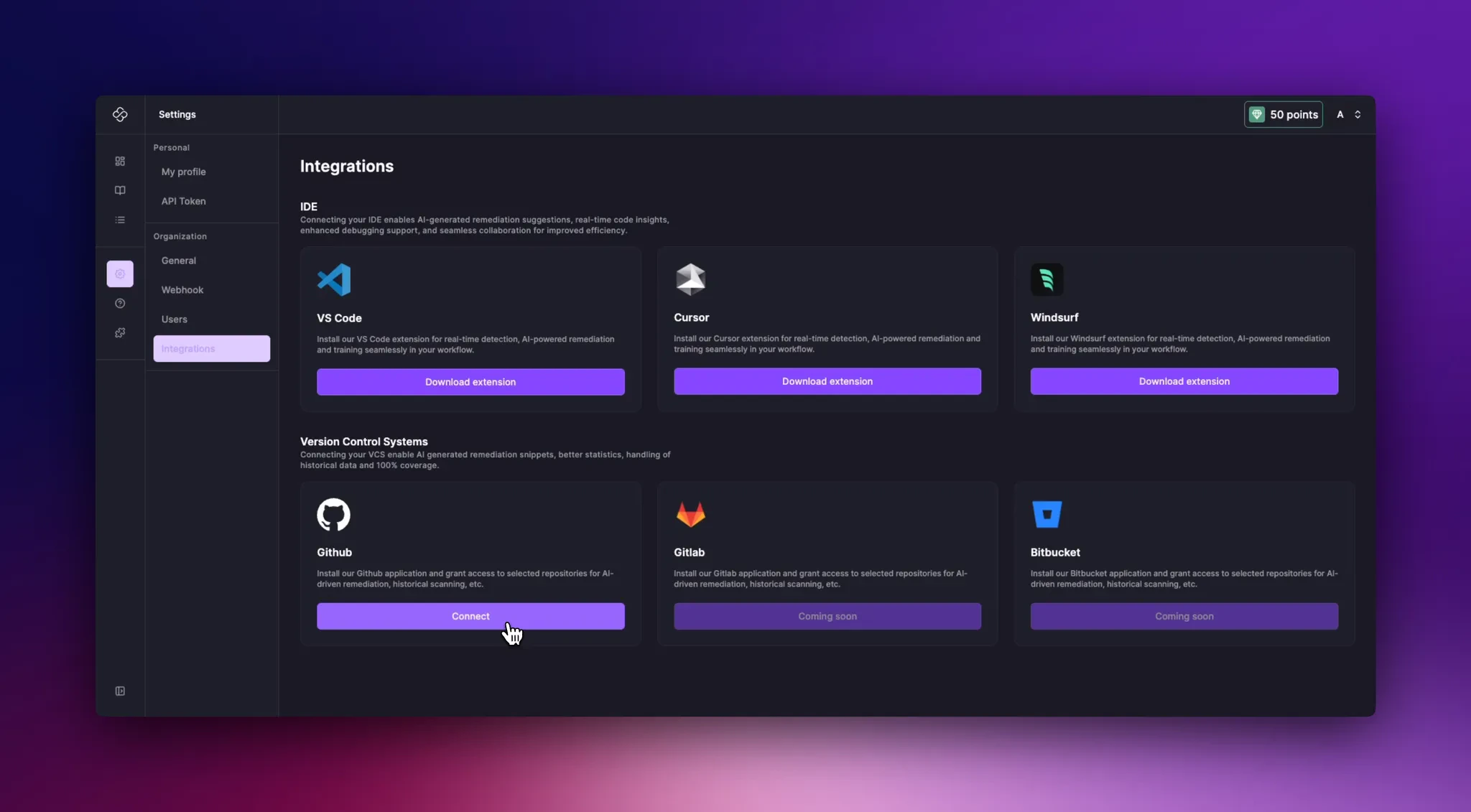
- Select Connect for GitHub.
-
You will be redirected to GitHub.
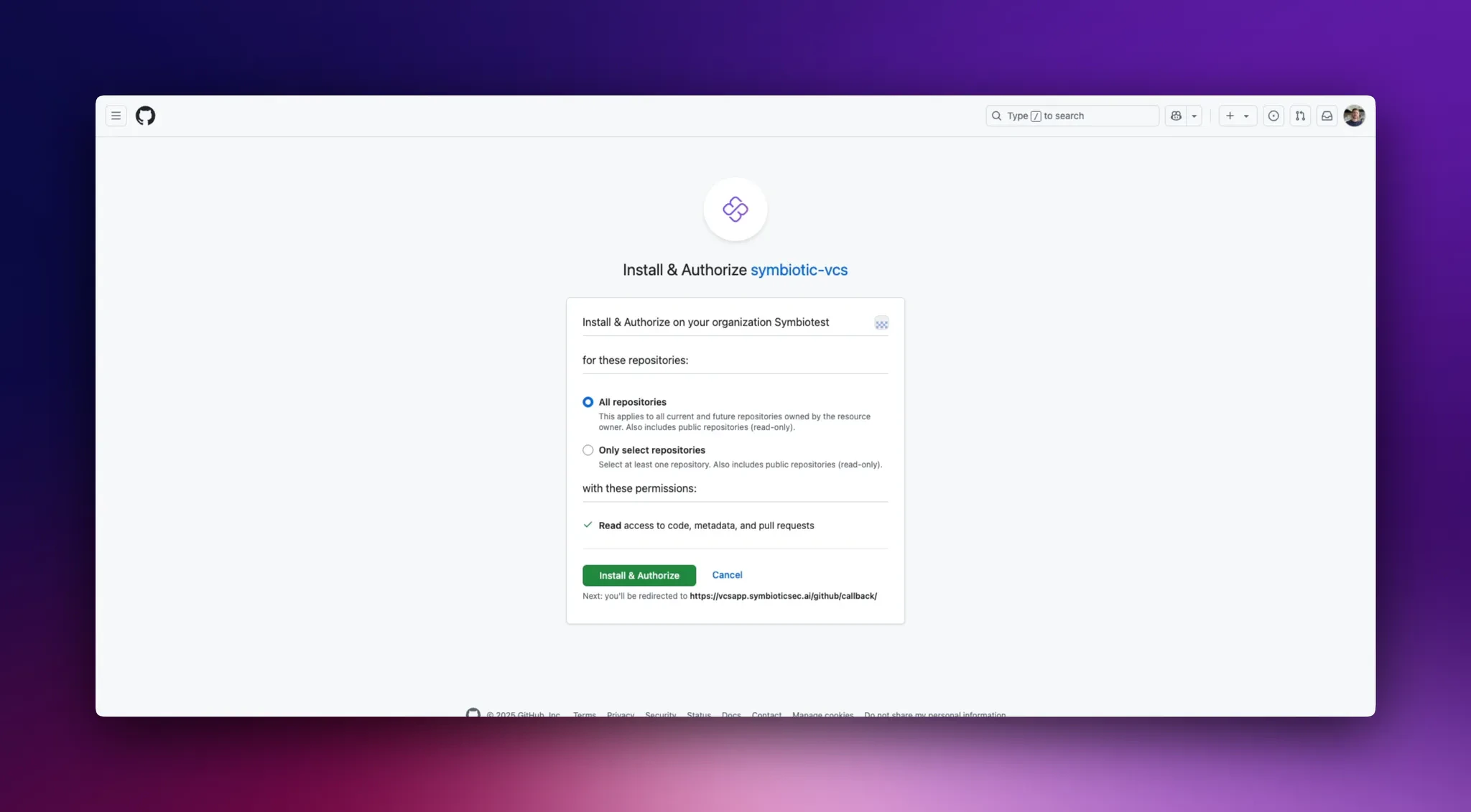
- Give the Symbiotic GitHub App access to all repositories in your organization or select specific repositories. You can change this scope later.
- Select Install & Authorize.
- You will return to Symbiotic, where selected repositories are scanned in the background.
Change GitHub repository access
- Go to the Integrations page.
- Select Manage for GitHub.
-
You will be redirected to GitHub.
- Change the repository scope, then select Install & Authorize.
- You will return to Symbiotic, where newly added repositories are scanned in the background.
Connect GitLab
- Go to the Integrations page and select Connect for GitLab.
- Choose GitLab Cloud or GitLab Self-Managed.
- Enter the GitLab group ID and a group access token. For GitLab Self-Managed, also enter the GitLab instance URL.
- Select Continue. Symbiotic retrieves the projects available to the group.
- Select the projects to scan and choose whether new projects are scanned automatically.
- Complete the connection. Symbiotic scans the selected projects in the background.
Store the GitLab group access token only in the integration form. Use a token with the minimum permissions needed to read the selected projects, and rotate or revoke it in GitLab if it is no longer needed.
Manage or disconnect GitLab
- Go to the Integrations page and select Manage for GitLab.
- Update the selected projects or automatic scanning setting, then select Save.
- To remove the connection, select Disconnect and confirm.