> ## Documentation Index
> Fetch the complete documentation index at: https://docs.symbioticsec.ai/llms.txt
> Use this file to discover all available pages before exploring further.
# Connect GitHub or GitLab
> Connect your GitHub organization or GitLab group and choose the repositories Symbiotic can scan
Connect a source-control provider from the [Integrations page](https://app.symbioticsec.ai/settings/integrations). You can connect GitHub and GitLab independently.
## Connect GitHub
1. Go to the [Integrations page](https://app.symbioticsec.ai/settings/integrations).
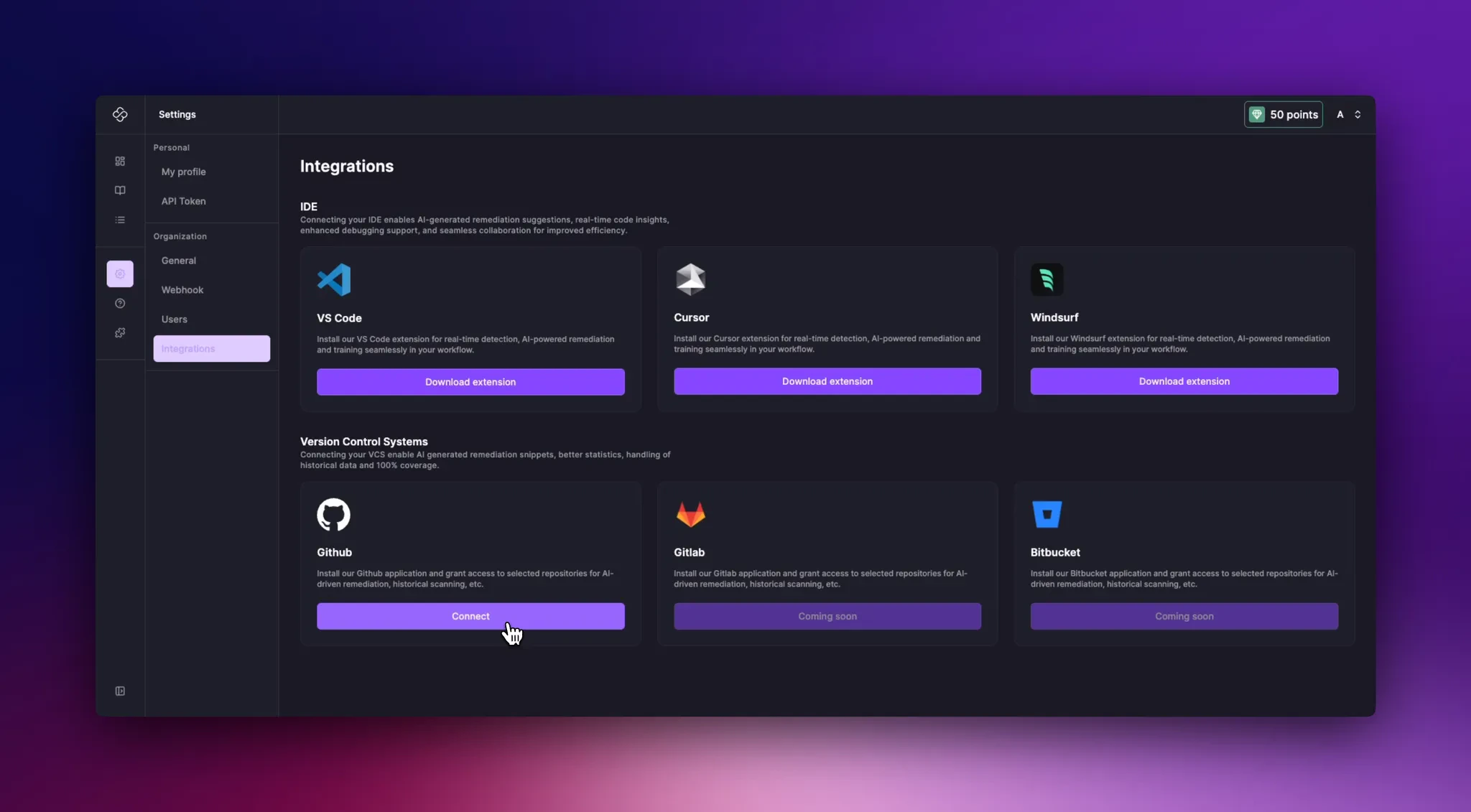 2. Select **Connect** for GitHub.
3. You will be redirected to GitHub.
2. Select **Connect** for GitHub.
3. You will be redirected to GitHub.
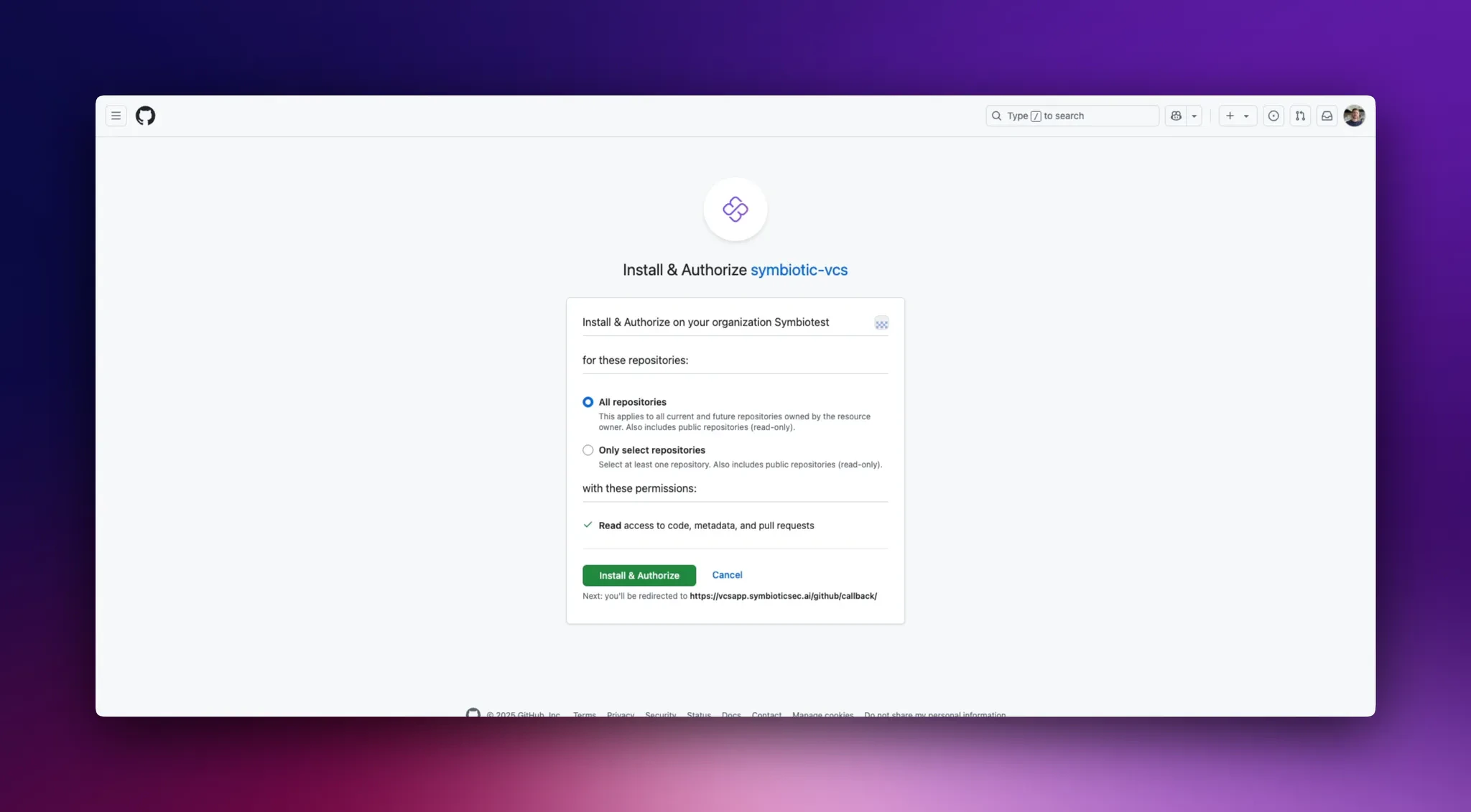 4. Give the Symbiotic GitHub App access to all repositories in your organization or select specific repositories. You can change this scope later.
5. Select **Install & Authorize**.
6. You will return to Symbiotic, where selected repositories are scanned in the background.
### Change GitHub repository access
1. Go to the [Integrations page](https://app.symbioticsec.ai/settings/integrations).
2. Select **Manage** for GitHub.
3. You will be redirected to GitHub.
4. Change the repository scope, then select **Install & Authorize**.
5. You will return to Symbiotic, where newly added repositories are scanned in the background.
## Connect GitLab
1. Go to the [Integrations page](https://app.symbioticsec.ai/settings/integrations) and select **Connect** for GitLab.
2. Choose **GitLab Cloud** or **GitLab Self-Managed**.
3. Enter the GitLab group ID and a group access token. For GitLab Self-Managed, also enter the GitLab instance URL.
4. Select **Continue**. Symbiotic retrieves the projects available to the group.
5. Select the projects to scan and choose whether new projects are scanned automatically.
6. Complete the connection. Symbiotic scans the selected projects in the background.
Store the GitLab group access token only in the integration form. Use a token with the minimum permissions needed to read the selected projects, and rotate or revoke it in GitLab if it is no longer needed.
### Manage or disconnect GitLab
1. Go to the [Integrations page](https://app.symbioticsec.ai/settings/integrations) and select **Manage** for GitLab.
2. Update the selected projects or automatic scanning setting, then select **Save**.
3. To remove the connection, select **Disconnect** and confirm.
4. Give the Symbiotic GitHub App access to all repositories in your organization or select specific repositories. You can change this scope later.
5. Select **Install & Authorize**.
6. You will return to Symbiotic, where selected repositories are scanned in the background.
### Change GitHub repository access
1. Go to the [Integrations page](https://app.symbioticsec.ai/settings/integrations).
2. Select **Manage** for GitHub.
3. You will be redirected to GitHub.
4. Change the repository scope, then select **Install & Authorize**.
5. You will return to Symbiotic, where newly added repositories are scanned in the background.
## Connect GitLab
1. Go to the [Integrations page](https://app.symbioticsec.ai/settings/integrations) and select **Connect** for GitLab.
2. Choose **GitLab Cloud** or **GitLab Self-Managed**.
3. Enter the GitLab group ID and a group access token. For GitLab Self-Managed, also enter the GitLab instance URL.
4. Select **Continue**. Symbiotic retrieves the projects available to the group.
5. Select the projects to scan and choose whether new projects are scanned automatically.
6. Complete the connection. Symbiotic scans the selected projects in the background.
Store the GitLab group access token only in the integration form. Use a token with the minimum permissions needed to read the selected projects, and rotate or revoke it in GitLab if it is no longer needed.
### Manage or disconnect GitLab
1. Go to the [Integrations page](https://app.symbioticsec.ai/settings/integrations) and select **Manage** for GitLab.
2. Update the selected projects or automatic scanning setting, then select **Save**.
3. To remove the connection, select **Disconnect** and confirm.